Make an assignment in a minute
Pick a topic, copy the assignment, and paste it into Google Classroom, Canvas, or an email. It’s free, and students only sign in when they turn it in.
What you get back
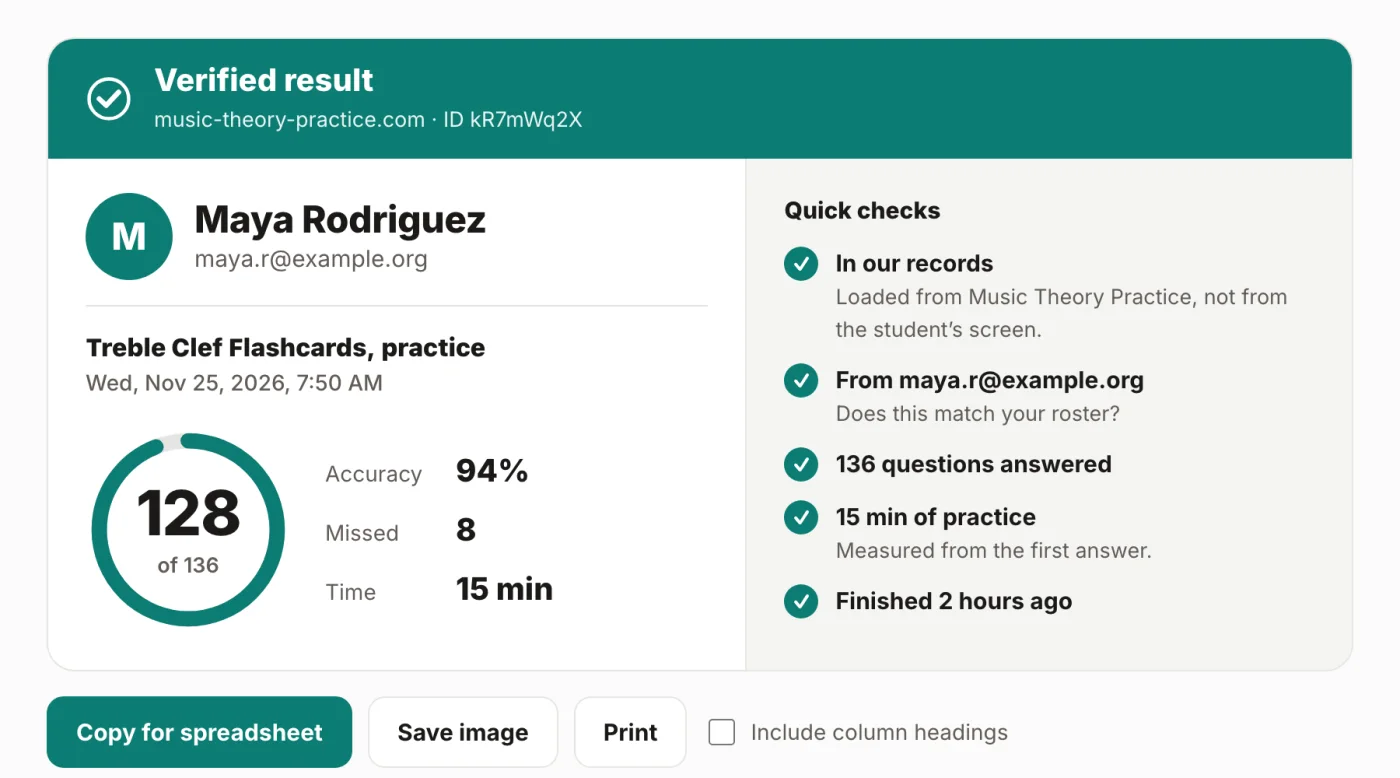
- Each student sends you a link. Open it to see their name, what they did, how they scored, and when.
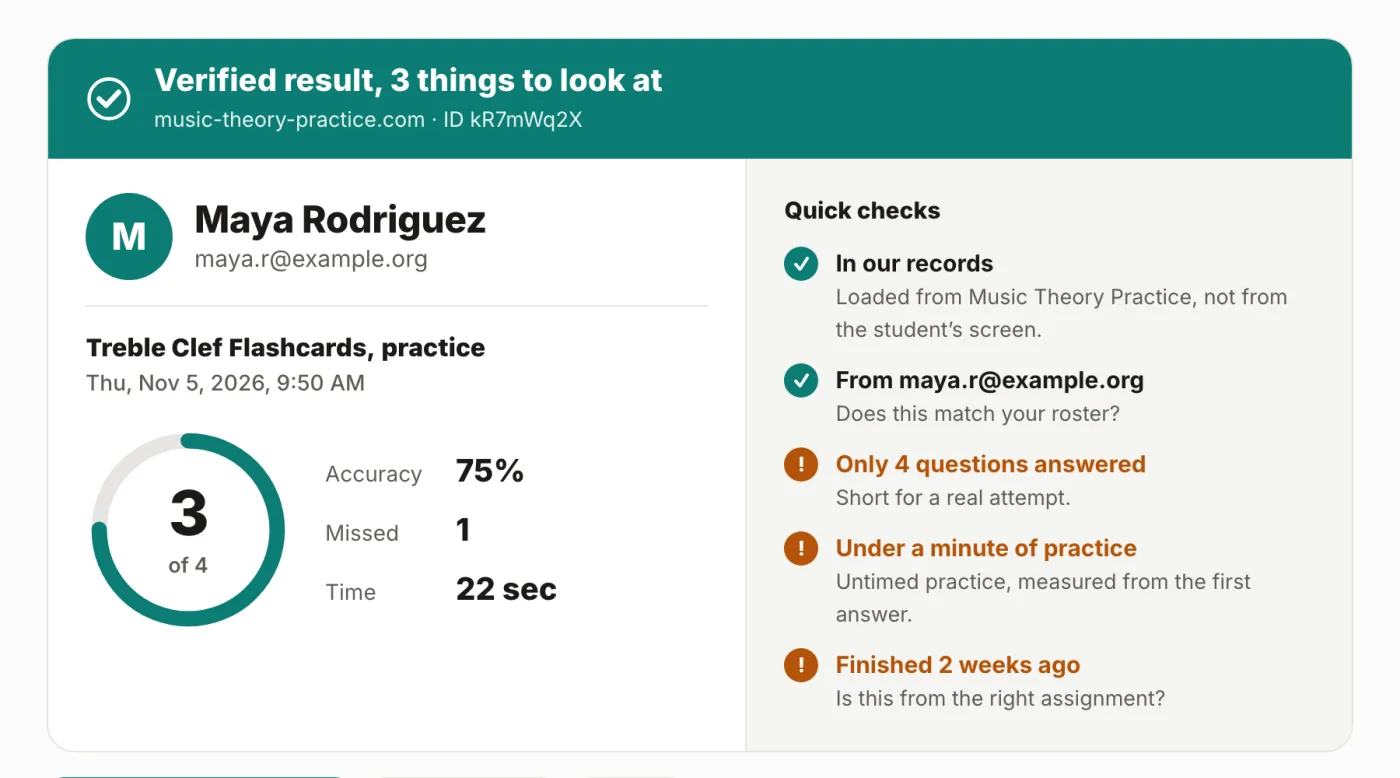
- The page tells you if something looks off, like only four questions or a result from two weeks ago.
- Click Copy for spreadsheet to paste it into your gradebook as one row.
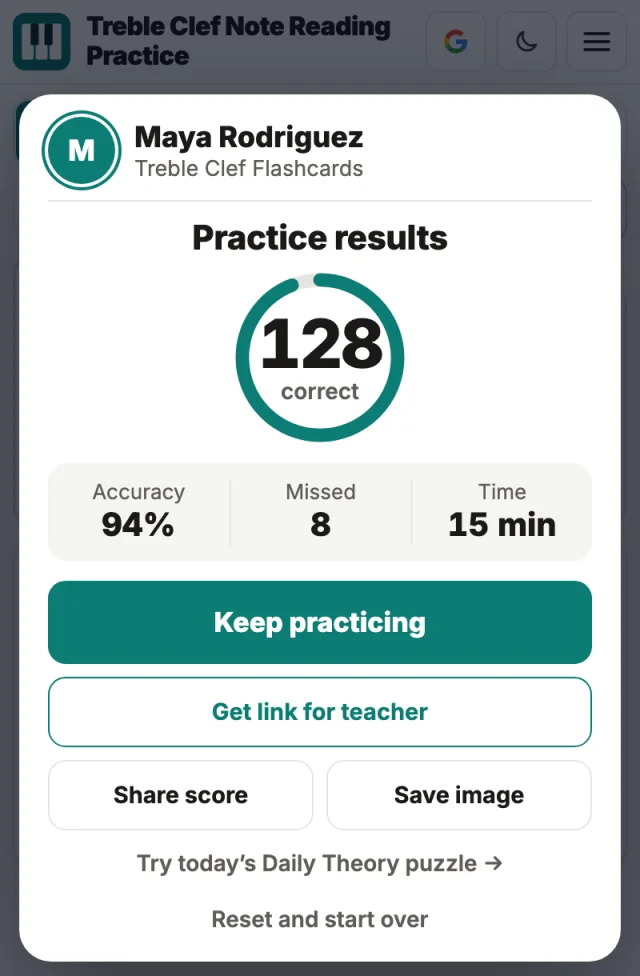
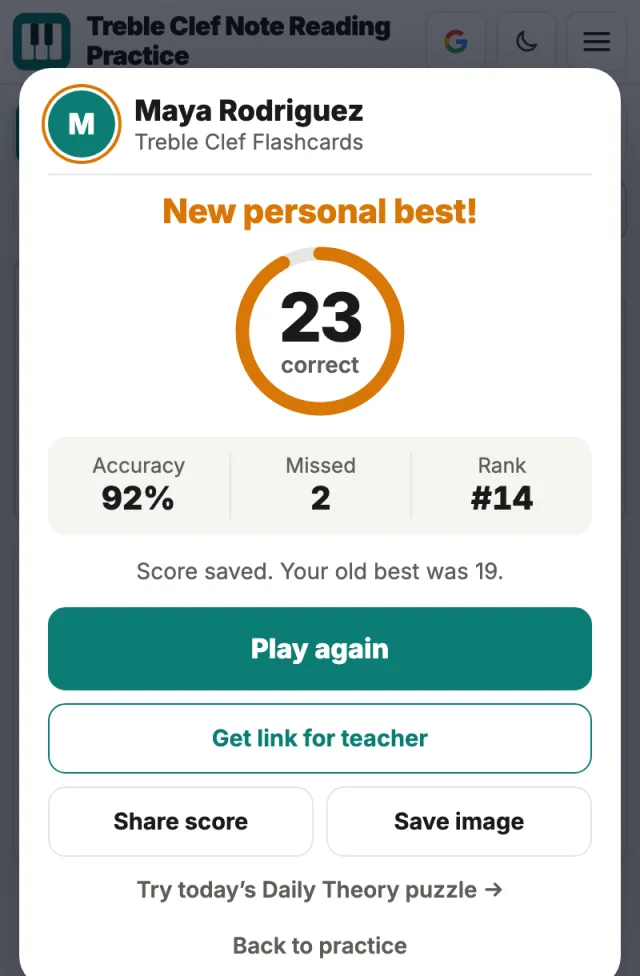
What students see when they finish
They can practice without signing in. At the end they sign in with Google and click Get link for teacher.
What a questionable result looks like
This student answered four questions in 22 seconds, two weeks ago. They may have just pasted the wrong link, but now you know to ask. Screenshots are easy to edit, so ask for the link.
Play with the whole class
Put one of these on the projector and let students call out the answers.
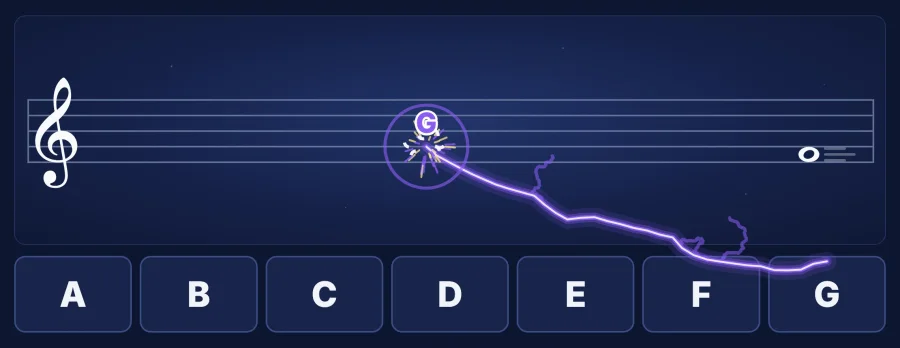 Note ZapperName the note to zap it before it hits the clef. Class mode keeps going as long as you want.
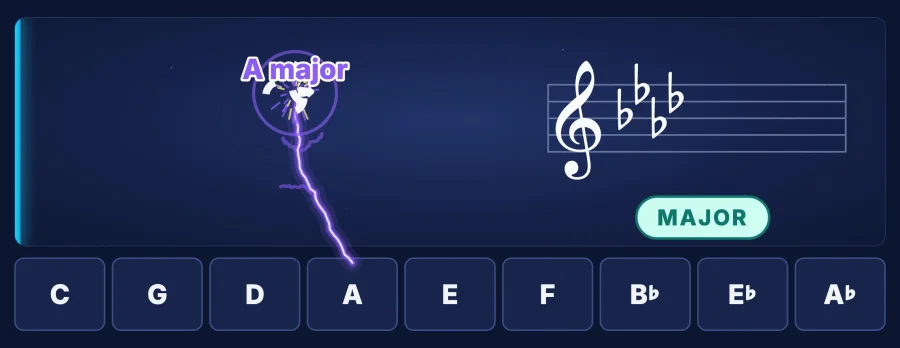 Key Signature ZapperName the key before it hits the shield. Choose major, minor, or both.
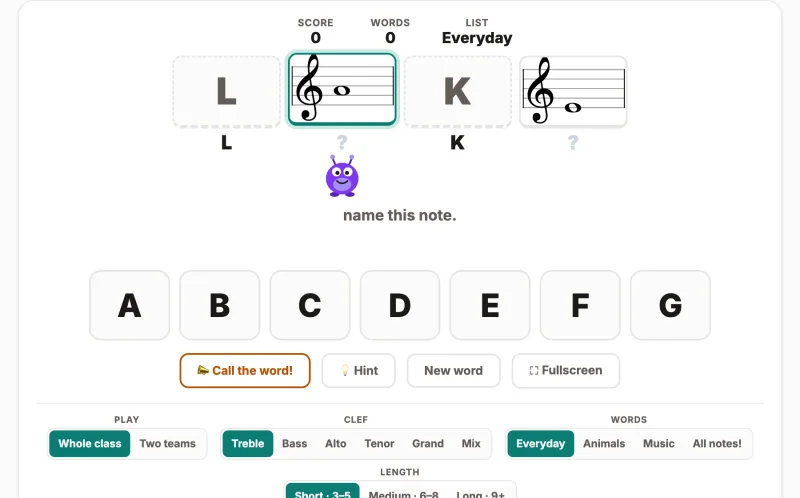 Rest MonsterRead notes to spell words before the monster eats the melody.
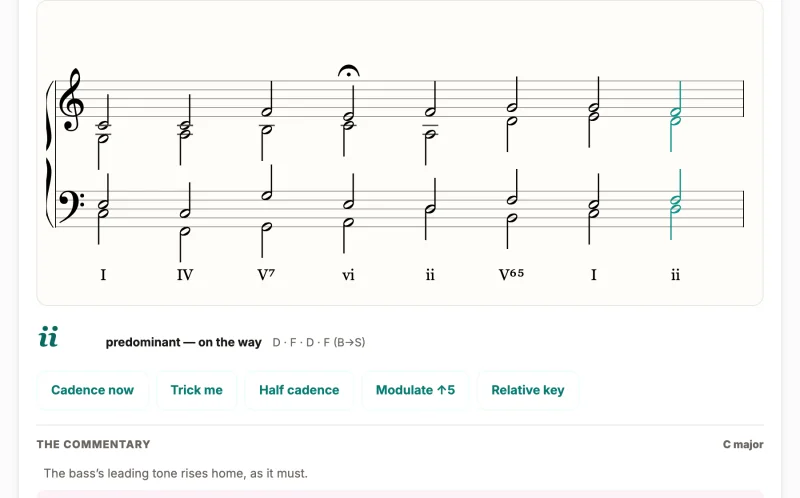 The Infinite ChoraleFour-part writing that explains itself as it goes.
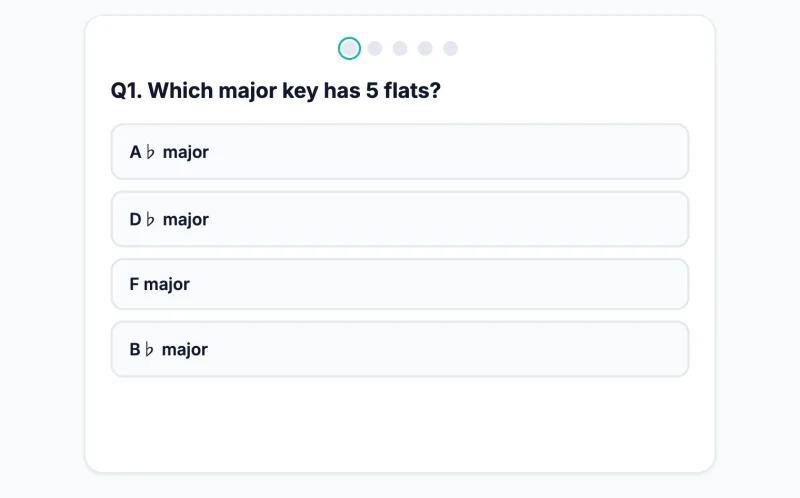 Daily TheoryOne short puzzle a day. Good for the first five minutes of class.
Worksheets and full units
Print them once and copy them for your own students for as long as you teach. Every worksheet has an answer key.
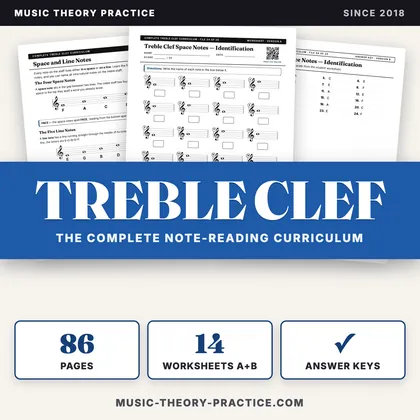
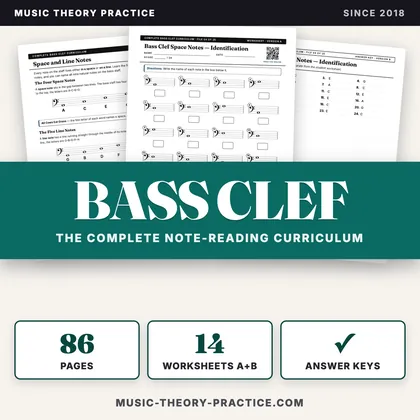
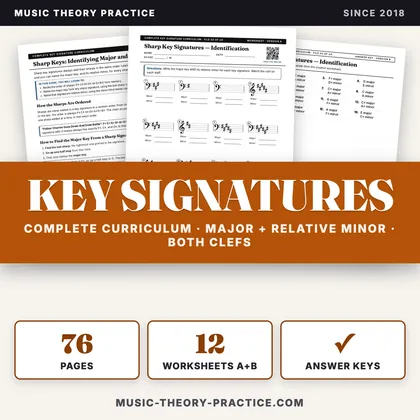
There are full units for alto and tenor clef too. If you only need a few pages, the $7.99 worksheet packs cover treble, bass, treble and bass, alto, tenor, and key signatures. You can also see everything in the store.
Questions teachers ask
Do students need an account?
What should I tell students to click?
After practice: View Results, then Sign in with Google, then Get link for teacher. After a Challenge, the results open on their own.
If you posted an assignment a while ago, it may say “Get Shareable Link.” That’s the same button.
How do I know it’s really them?
Could a student fake a score?
Who can see a results link?
The results page says it couldn’t check a result. Why?
How long do links last?
Can I change the settings on a drill before I assign it?
Do the class games work on a projector?
Can I share the printed materials with other teachers?
Something else? Email [email protected].